



Description
Download Free Screen to Video – Record Screen Activity Easily on Windows & Mac
Free Screen to Video is a lightweight and user-friendly screen recording tool designed for quick and hassle-free capture of on-screen activity. Whether you're creating tutorials, recording software demos, or sharing step-by-step instructions, this free software makes it simple to record your screen in high-quality video formats like AVI and SWF (Flash). With intuitive controls and minimal setup, Free Screen to Video is perfect for beginners and casual users who need a no-frills solution. The software supports three recording modes—full screen, active window, or custom area—giving you flexibility depending on your needs. You can also choose to capture system audio, microphone input, or both, making it ideal for voice-over recordings. While it lacks advanced editing features, its simplicity and reliability make it a solid choice for straightforward screen capture tasks. Best of all, it's completely free to download and use, with no hidden costs or watermarks. Perfect for educators, remote workers, and content creators who want to record screen activity without the complexity of professional-grade tools.
Key Features of Free Screen to Video
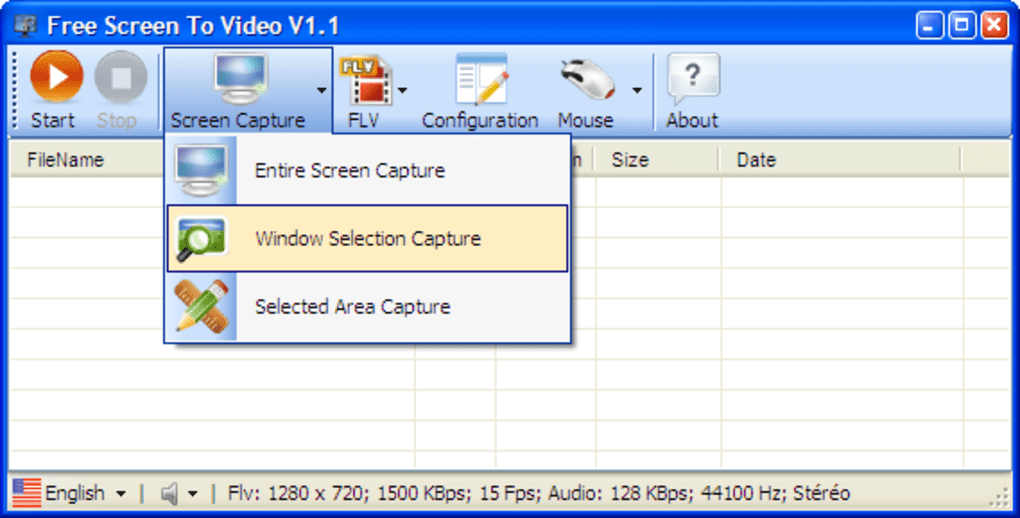
Free Screen to Video stands out with its clean interface and essential recording features tailored for everyday users. One of the most valuable aspects is its support for multiple recording modes: you can capture your entire screen, just the active window, or a custom-defined area. This level of control ensures you only record what’s necessary, saving storage space and improving focus. The software also allows you to record audio from your system or microphone, which is essential for narrated tutorials or presentations. You can toggle between these options easily in the settings, ensuring flexibility for different use cases.
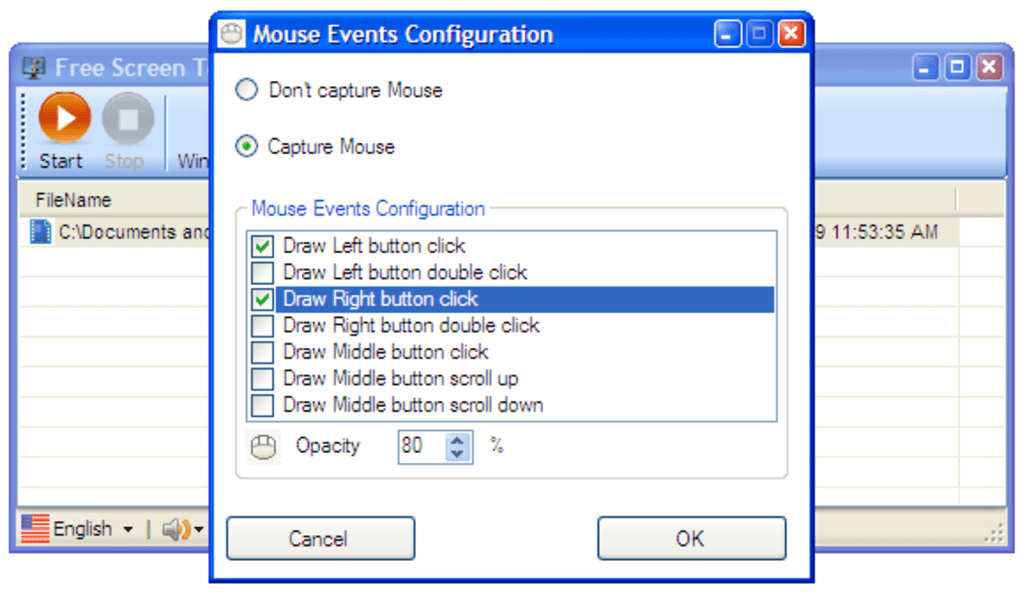
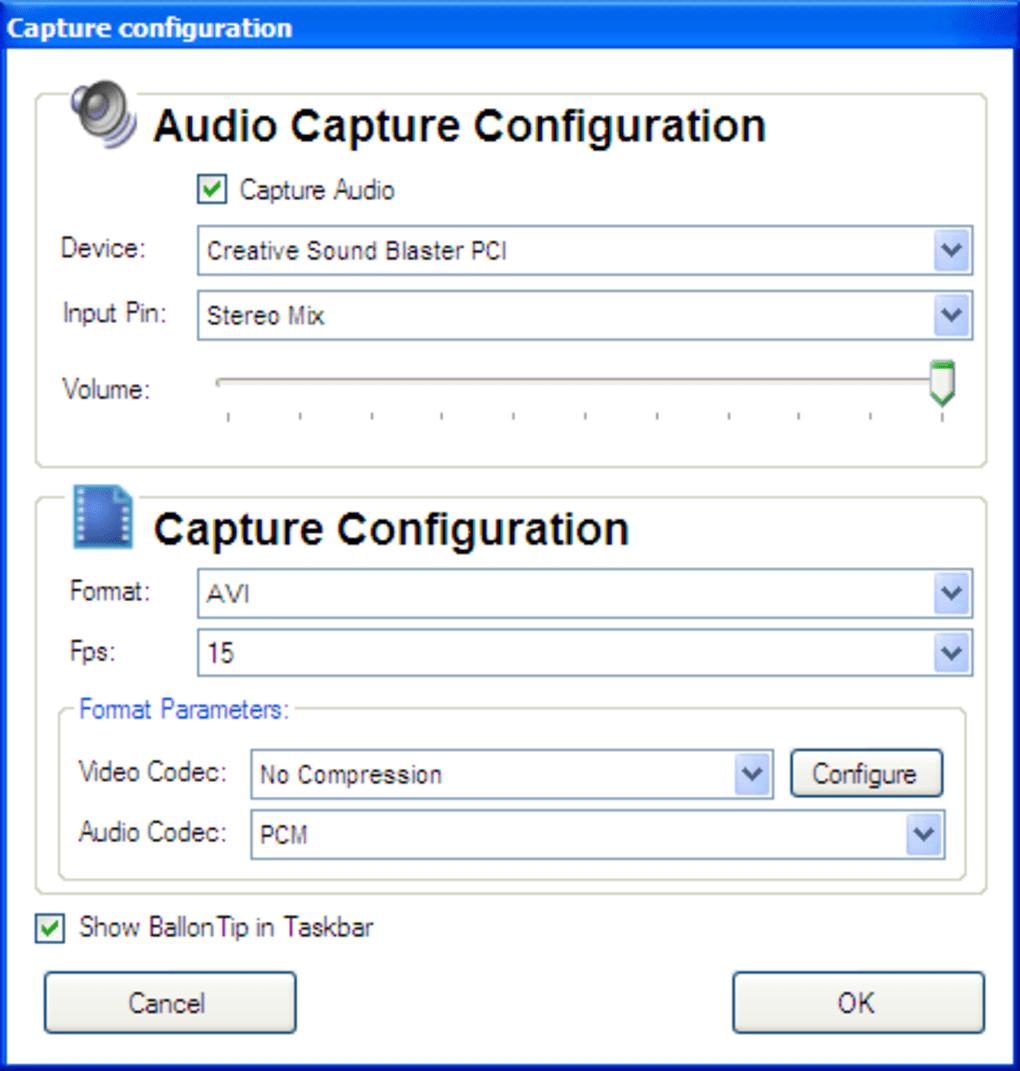
Another standout feature is the ability to capture mouse movements and clicks. This is particularly useful for creating instructional videos where visual cues are critical. However, as noted in testing, the cursor tracking isn't always precise—there’s a slight delay or offset, which may affect accuracy in detailed demonstrations. Still, for general use, it’s functional enough. The tool supports multiple output formats, including AVI and SWF (Flash), making it compatible with various platforms and media players. While it doesn’t offer video editing, it does allow you to adjust video quality, frame rate, and recording duration through its configuration panel.
Installation is straightforward, and the software runs in the background without consuming excessive system resources. It’s ideal for users with older or low-end machines who need a reliable screen recorder without lag. Additionally, the absence of intrusive ads or pop-ups enhances the user experience. Whether you're recording a software walkthrough, a Zoom meeting, or a quick tutorial, Free Screen to Video delivers consistent results. It’s not a replacement for advanced tools like Camtasia or OBS, but for simple, fast recordings, it’s a reliable and secure choice.
- Record full screen, active window, or custom screen area
- Support for AVI and SWF (Flash) video formats
- Optional audio recording (system and/or microphone)
- Mouse click and movement capture
- Adjustable video quality, frame rate, and recording duration
- Lightweight and low system resource usage
- Free to download and use with no watermarks
How to Install and Use Free Screen to Video
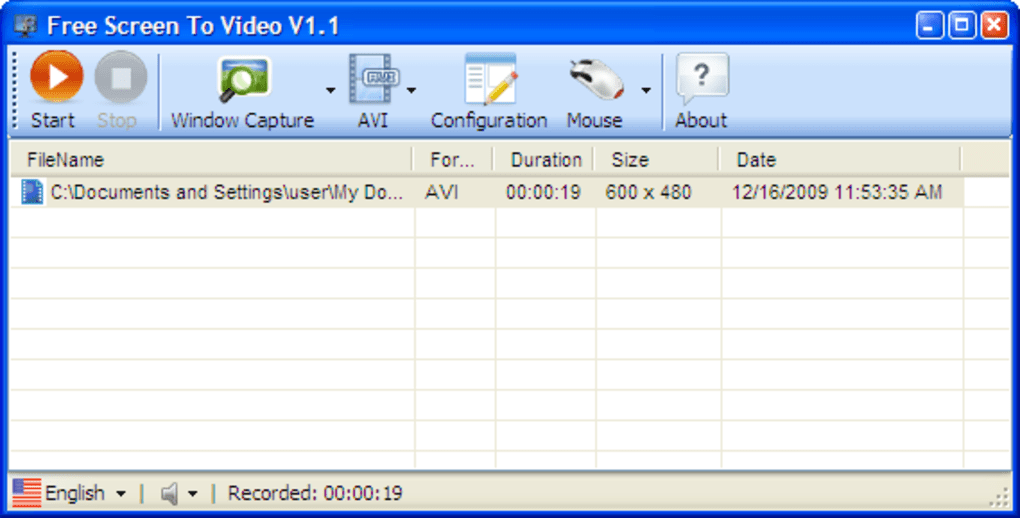
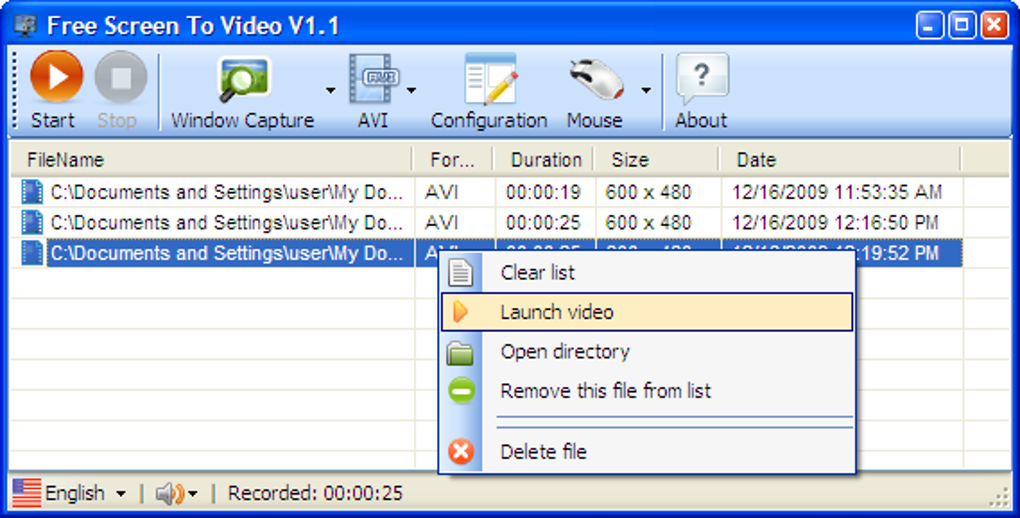
Getting started with Free Screen to Video is a breeze, even for users with minimal technical knowledge. Begin by visiting the official download page and selecting the version compatible with your operating system—Windows or Mac. The installer is small in size and completes the setup process within seconds. Once installed, launch the application from your desktop or Start menu. The main interface is minimalistic, with clearly labeled buttons for recording, settings, and playback.
To begin recording, click the “Start” button and choose your recording mode: full screen, active window, or a custom area. If you select a custom area, simply drag the selection box to define the region you want to capture. You can also enable audio recording by selecting the appropriate input source—system audio, microphone, or both. The software provides a preview of the selected area and audio settings, so you can verify everything before starting. Once everything is set, click “Start Recording” and begin your screen activity.
When you’re finished, click the “Stop” button. The recording will be automatically saved to your chosen folder, with a default filename and timestamp. You can then play the video directly in the app or open it in any standard media player. For future recordings, you can adjust the settings—such as video quality, frame rate, or output format—under the “Settings” tab. The tool also remembers your last configuration, so you don’t need to reconfigure every time. This makes it ideal for repetitive tasks like daily tutorials or training sessions.
One important tip: to avoid audio distortion, ensure your microphone is properly configured and not picking up background noise. Also, avoid running other resource-heavy applications during recording to maintain smooth performance. With these simple steps, you’ll be able to capture professional-looking screen videos in minutes.
Compatibility and System Requirements
Free Screen to Video is designed to work seamlessly across multiple platforms, making it accessible to a wide range of users. It supports both Windows (Windows 7, 8, 10, and 11) and Mac (macOS 10.12 and later), ensuring compatibility with most modern desktop systems. The software is lightweight, requiring minimal system resources—typically less than 50 MB of RAM during operation—making it suitable for older or low-spec machines.
For Windows users, no additional codecs are required, as the tool includes built-in support for AVI and SWF formats. Mac users will also find the installation process smooth, with no dependency issues. The application runs in the background without interfering with other programs, allowing you to multitask while recording. It’s especially useful for remote workers, educators, and content creators who need a reliable tool without the overhead of complex software.
While the software is free to download and use, it does not currently support Android or iOS devices. If you need mobile screen recording, you may want to consider alternatives like QuickTime (on Mac) or built-in screen recording features on newer iOS versions. However, for desktop users, Free Screen to Video remains a secure and efficient option. The software is regularly updated to fix bugs and improve compatibility with new OS versions, ensuring long-term usability.
- Operating System: Windows 7/8/10/11, macOS 10.12+
- RAM: 512 MB minimum (1 GB recommended)
- Storage: 100 MB free space for installation
- Audio Support: System audio, microphone, or both
- Video Output: AVI, SWF (Flash)
Pros and Cons of Free Screen to Video
Every tool has its strengths and limitations, and Free Screen to Video is no exception. Understanding its pros and cons will help you decide if it’s the right fit for your needs.
Pros
- Simple and intuitive interface – Easy to use for beginners and non-technical users.
- Free to download and use – No cost, no watermarks, no hidden fees.
- Multiple recording modes – Full screen, active window, or custom area.
- Audio recording support – Capture system sound or microphone input.
- Lightweight performance – Low CPU and memory usage, ideal for older systems.
- Fast installation and setup – No complex configuration required.
Cons
- Cursor tracking issues – Mouse movements are slightly delayed or offset.
- No video editing features – Cannot trim, crop, or add effects post-recording.
- Limited output formats – Only AVI and SWF; lacks modern formats like MP4.
- No mobile support – Not available for Android or iOS devices.
- Outdated interface – Design feels dated compared to modern screen recorders.
FAQ: Frequently Asked Questions
Is Free Screen to Video really free to use?
Yes, Free Screen to Video is completely free to download and use. There are no hidden charges, subscription fees, or watermarks on recorded videos. The software is supported by its developers through occasional updates and community support.
Can I record audio while capturing my screen?
Yes, Free Screen to Video allows you to record system audio, microphone input, or both simultaneously. This feature is perfect for creating narrated tutorials or explaining software features with voice commentary.
Does it support MP4 format?
No, Free Screen to Video currently only supports AVI and SWF (Flash) formats. If you need MP4 output, you may need to convert the file using a free video converter after recording.
Is it safe to download Free Screen to Video?
Yes, as long as you download it from the official website or trusted sources, Free Screen to Video is safe and secure. Avoid third-party sites that may bundle malware or adware with the installer.
Can I use it on Mac and Windows?
Yes, Free Screen to Video is available for both Windows (7/8/10/11) and macOS (10.12 and later), making it a cross-platform solution for screen recording.
Final Verdict: Is Free Screen to Video Worth It?
Free Screen to Video is an excellent choice for users who need a no-fuss, reliable tool to record screen activity without the complexity of advanced software. While it lacks video editing capabilities and has minor cursor tracking issues, its simplicity, lightweight design, and free access make it a standout option for quick tutorials, software demos, and educational content. If you’re looking for a secure, fast, and straightforward way to capture your screen on Windows or Mac, this tool delivers solid results. It’s not meant to replace professional tools like OBS Studio or Camtasia, but for basic screen recording tasks, it’s more than sufficient.
With regular updates and a growing user base, Free Screen to Video continues to be a trusted option for casual users. Whether you're a teacher, trainer, or remote worker, downloading this free tool can save you time and effort. Don’t miss out—get started today and start creating engaging screen videos in minutes.
Download Free Screen to Video now and start recording your screen with ease!
Guides & Tutorials for Free Screen To Video
How to install Free Screen To Video
- Click the Preview / Download button above.
- Once redirected, accept the terms and click Install.
- Wait for the Free Screen To Video download to finish on your device.
How to use Free Screen To Video
This software is primarily used for its core features described above. Open the app after installation to explore its capabilities.
User Reviews for Free Screen To Video 0
No reviews found





